

Adding Japanese support to Windows Mobile 6.1
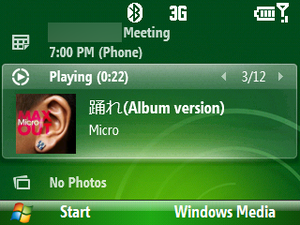
The Windows Mobile 6.1 update just hit for my Blackjack II, and I’m liking it quite a bit. One problem, though, is that it seems to lack any Japanese fonts for the UI – everything shows up as those familiar boxes. Here’s how to add the Meiryo font from Vista to your phone.
Caveat lector: this involves modifying the registry on your phone. If you aren’t completely confident in your abilities with this, don’t do it. I’ve only done this on my AT&T Blackjack II running the Windows Mobile 6.1 update. Phones are pretty damned expensive, don’t blame me if you break yours!
You will need:
- Mobile Registry Editor
- Windows Mobile Device Center(6.1 or higher)
First you need to grab the font files from Vista, out of your Windows\Fonts dir. Explorer doesn’t let you do this, so you can go via command line or any other app with a Open File window or something similar. You are looking for meiryo.ttc and meiryob.ttc. Once you’ve got these, copy them to your phone’s Windows\Fonts dir.
Next you’ll need to perform some registry edits on your phone. Open up Mobile Registry Editor and go to HKEY_LOCAL_MACHINE\Software\Microsoft. Right click, and go to New->Registry Key. Enter FontLink for the name. Inside of the FontLink key, add another key called SystemLink.
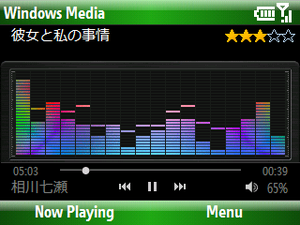
Inside the SystemLink key, right click and go to New->Multi-String Value. For the Value Name, enter Segoe Condensed. For the Value Data, enter windows\fonts\meiryo.ttc,Meiryo. To my knowledge Segoe Condensed is the only font used in the UI on Windows Mobile 6.1, but you can repeat this step replacing Segoe Condensed with any fonts you want to add Japanese support to.
Now go back to HKEY_LOCAL_MACHINE\Software\Microsoft. Add a new key called FontPath. Inside this key, right click and go to New->String Value. For Value Name, enter FontPath. For Value Data, enter windows\fonts.
Now just reboot the phone and it should have Japanese support throughout the UI!
Related Posts
- Visual Studio incompatibilities on September 10, 2008 in Microsoft, Windows Mobile
- 68th Annual Nisei Week has begun! on August 18, 2008 in Japanese
- Nabe shuts down, in comes Shabu Shabuyo on January 29, 2009 in Japanese
- More on Japanese in Windows on September 29, 2008 in Japanese, Microsoft
- Odd new ramen place in Little Tokyo on January 17, 2009 in Japanese
